
Instructors can grade assignments directly from within the Schoology Android app.
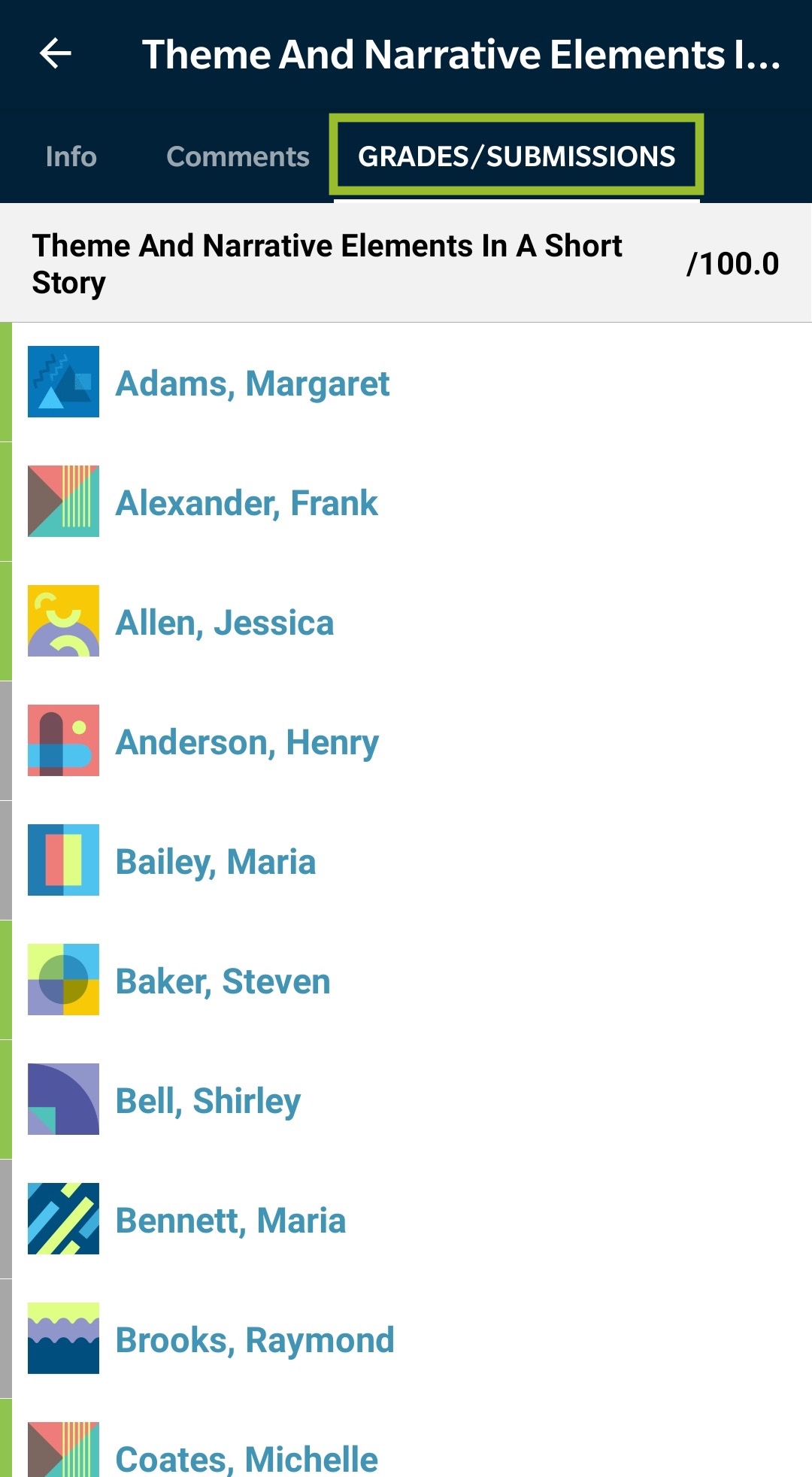
To access the grading panel, open an assignment and tap Grades/Submissions from the navigation bar. Choose a student's name from the list to access their submission.
How to Enter a Grade
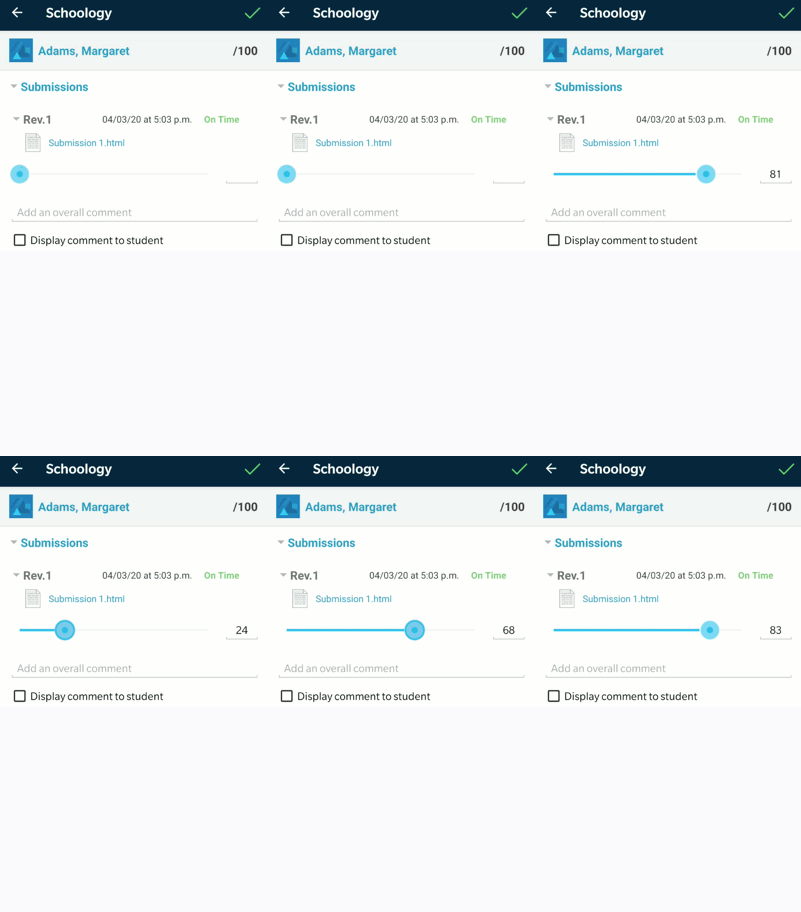
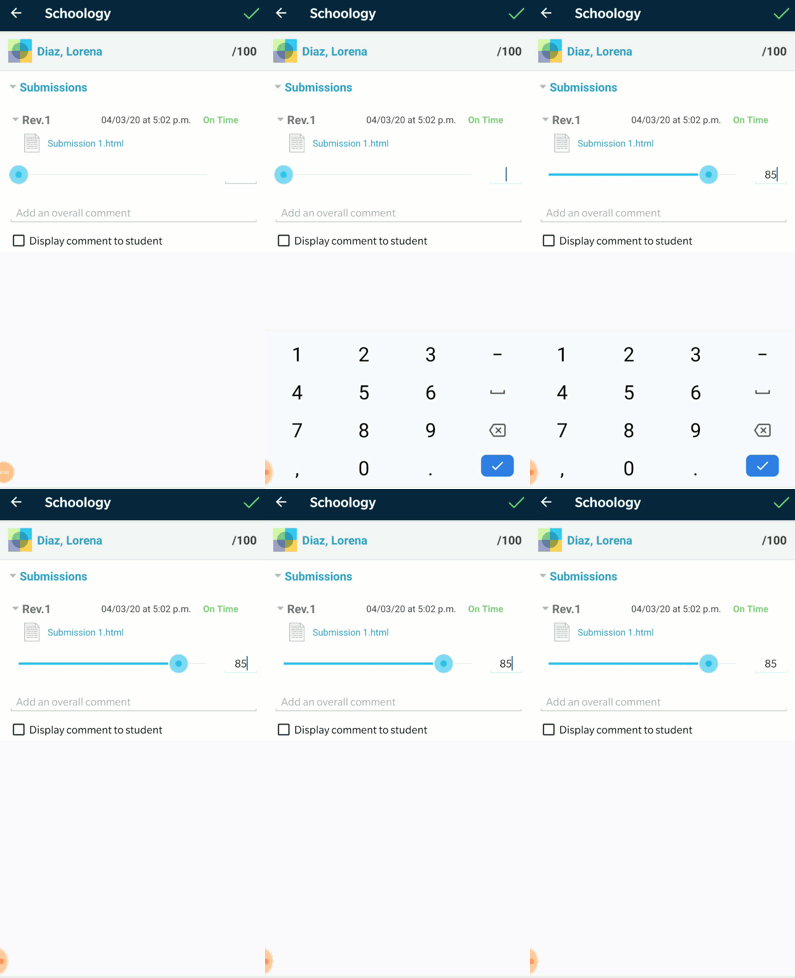
To grade a submission, use the slider to adjust the numerical score, or enter a score by tapping into the field and using the keyboard on your device. Tap the green checkmark 
Using the slider to adjust the grade:
Using the keyboard to manually enter a score:
Grading With a Rubric
To grade a student's submission using a rubric, tap the number for each criteria or type it in the Pts column.
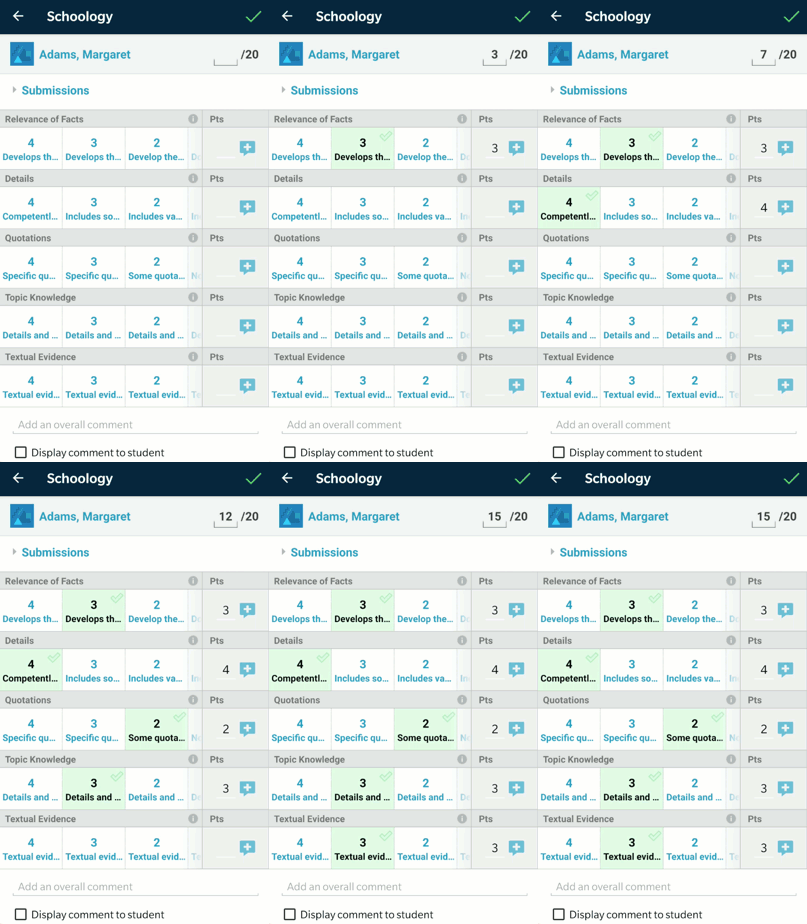
Tap the Info icon 
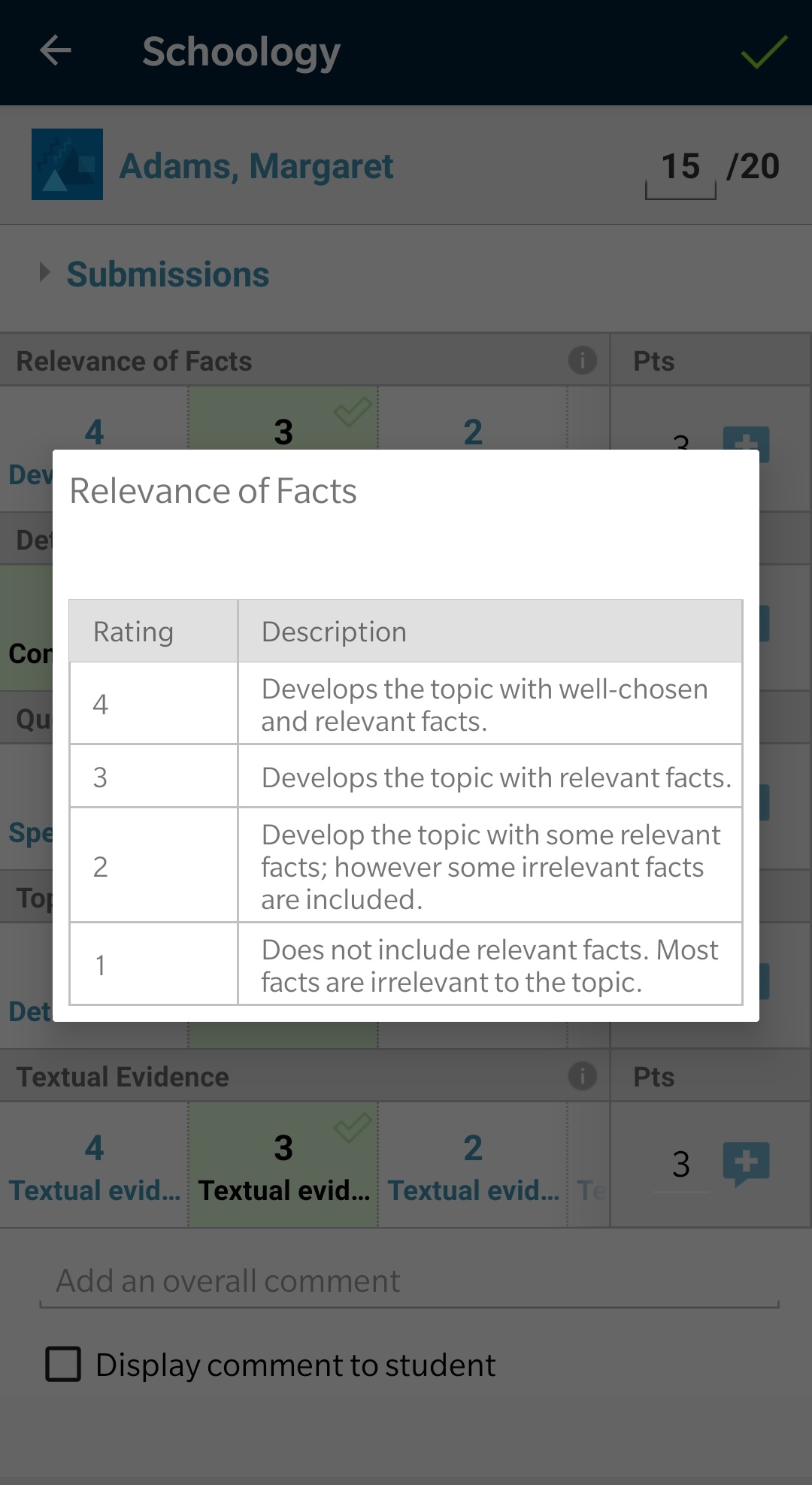
Comments may also be added and displayed to your student.
-
To add a comment corresponding to a specific criterion on your rubric, tap the Comment

-
To add a comment for the entire submission tap Add an overall comment and enter your comment.
The rubric must be attached to the assignment from the web browser in order to grade an assignment using a rubric from the mobile app.