
Use the File Upload question type to allow students to include files in their submissions and to support students with accommodations or any kind of learning need.
In order to view images and audio/video files uploaded to questions, you must add the following domains to your network's Allowed list:
-
*.learnosity.com
-
s3.amazonaws.com/assets.learnosity.com
-
s3.amazonaws.com/learnositymediaprocessed
If your organization has a policy that prevents you from using a wildcard, download the full list of URLs that need to be added to the Allowed list. If you are unable to view media content, reach out to the Support Contact at your organization to confirm the above URLs have been added to the Allowed list.
Question Setup
-
The following file types are supported:
ASF, ASM, AVI, BDF, BSF, C, CPP, CSV, DOC, DOCM, DOCX, DOT, DOTM, DOTX, FIG, GIF, H, JPEG, JPG, M, MAT, MOV, MP4, ODF, ODP, ODS, ODT, PDF, PNG, POT, POTM, POTX, PPS, PPSM, PPSX, PPT, PPTM, PPTX, PUB, RTF, S, SV, TXT, V, WEBM, WMV, XLS, XLSM, XLSX, XLT, XLTM, XPS, ZIP.
-
There is a file size limit of 100MB for uploaded files.
Enter your question or instructions in the Question Setup area.
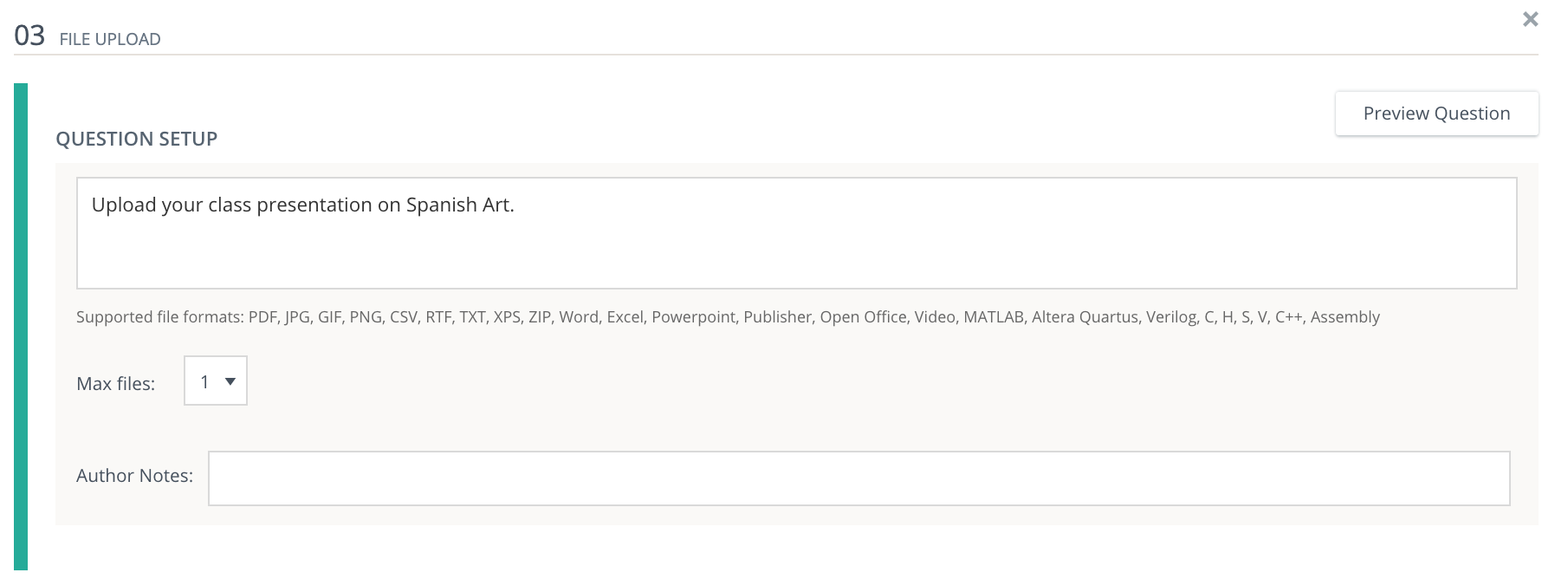
Click on the Question Setup field to access the Rich Text Editor. Move your mouse over the individual icons to view the tooltip explaining the function of each button.

Max Files
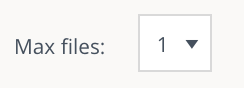
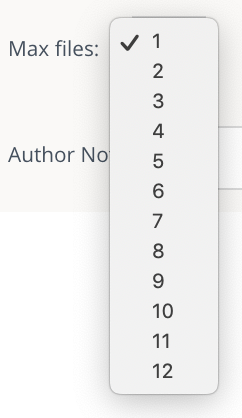
Use the drop-down menu to enter a file limit for student uploads in the Max files field. You may allow up to 12 files to be uploaded with each submission on a question.
Author Notes
Enter Author Notes to explain why certain responses are incorrect, or which alternate answers are acceptable. If you have edit access to a question, you will see this field. This information will not display to students.

Align Learning Objectives or Rubrics
Click Learning Objectives to open the Learning Objectives browser window.
Click Browse/Search to find and add specific objectives.
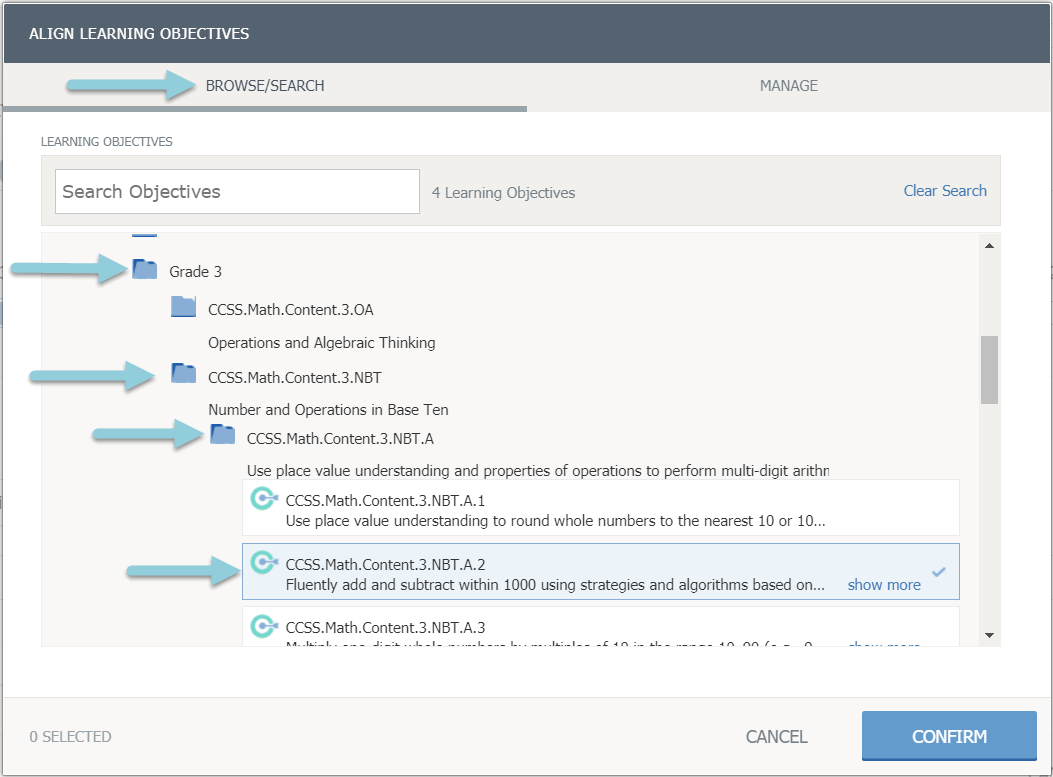
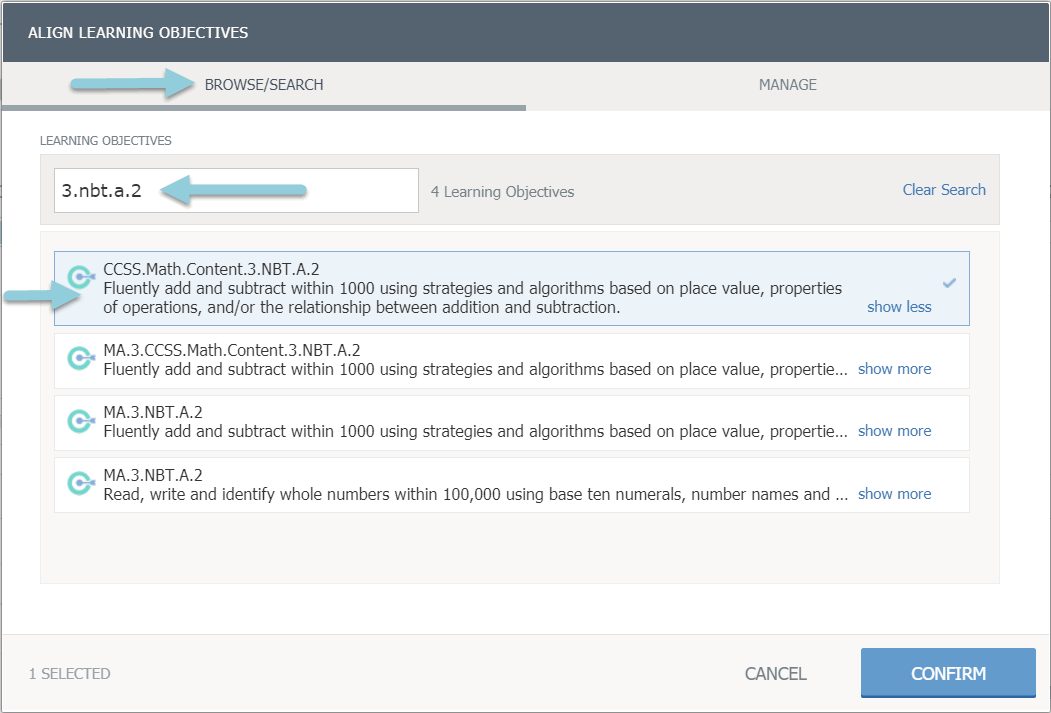
Click Manage for objectives already aligned to the question.
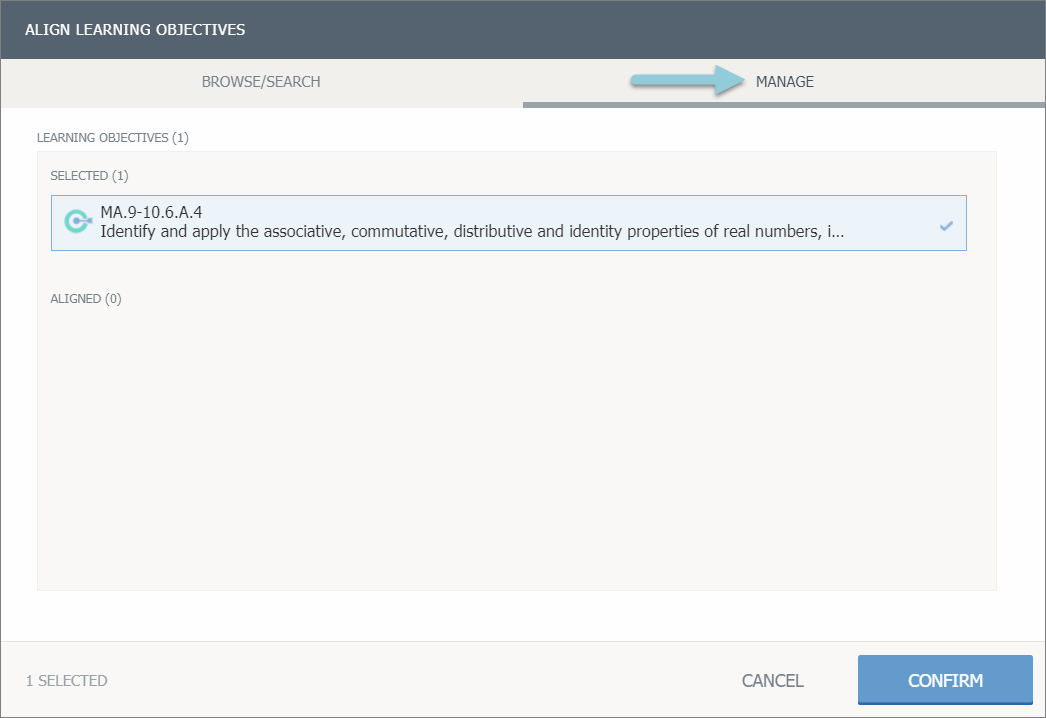
Click Confirm to save the learning objectives.
Click Align Rubric to create a new rubric, or to add an existing rubric.
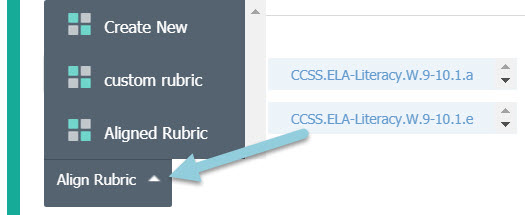
Once a rubric has been aligned, you can click the rubric icon (four squares) to view/edit the rubric or click X to remove the rubric from the question.
Check the Show to students box to display the rubric to students when they are taking the test.

If you set the rubric to Show to students, the rubric does not display in the question preview. However, students can review the rubric during the assessment.
Preview and Edit Question
To see how the question will appear to a student taking it in an assessment, click Preview Question.
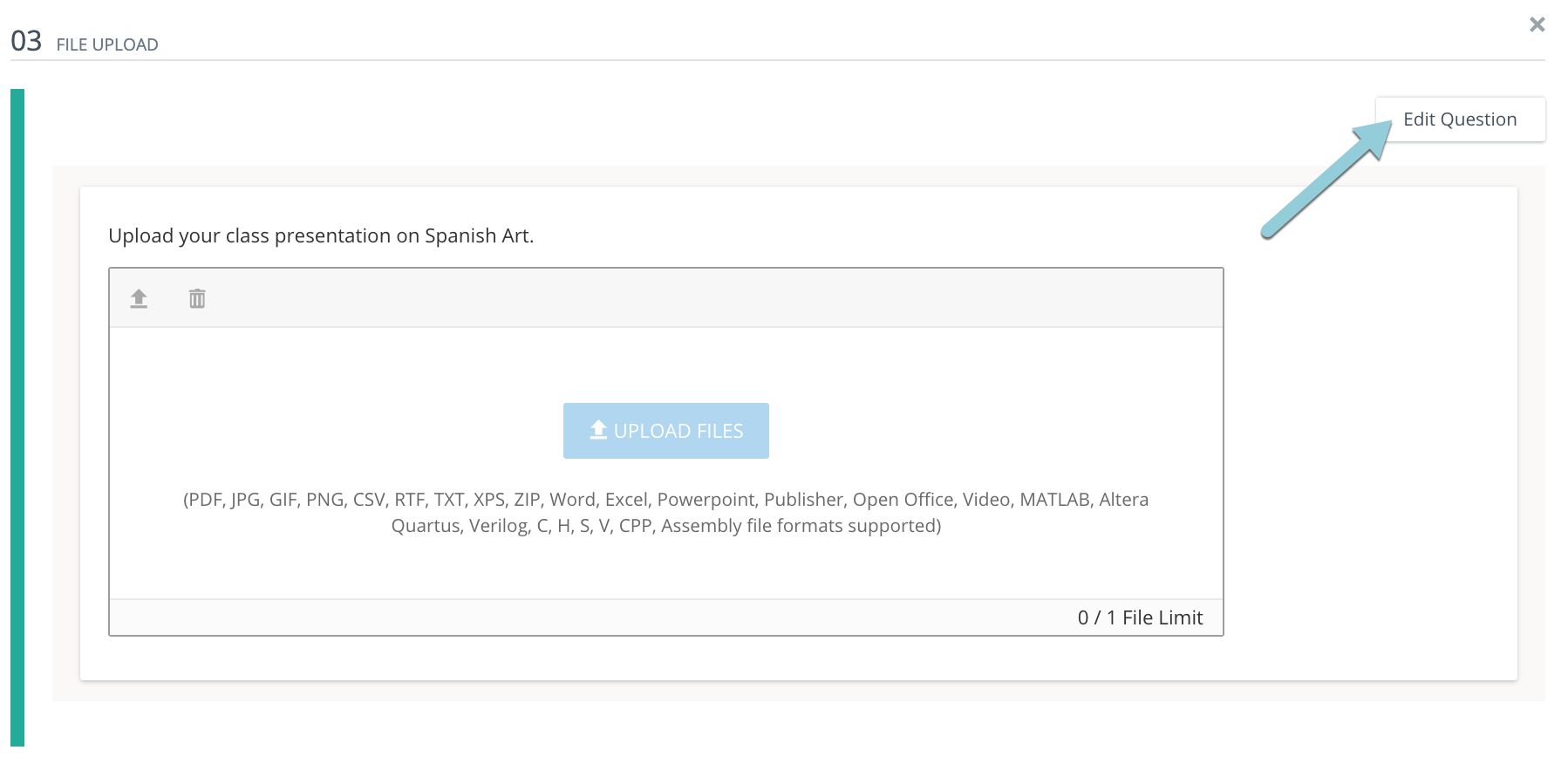
To exit the preview screen and return to the question editor, click Edit Question.
Once you are finished editing the question, click Save.