Use section override roles to assign section-specific permissions that may differ from the global permissions on an organization-level role.
Section override roles are an optional feature. System administrators can enable this ability by contacting PowerSchool Support.
There are six default categories that cover many likely role scenarios:
|
Role Name |
Potential User Roles |
|
Edit Grades / Edit Materials |
|
|
Edit Grades / View Materials |
|
|
View Grades / Edit Materials |
|
|
View Grades / View Materials |
|
|
No Grades / Edit Materials |
|
|
No Grades / View Materials |
|
It’s important to remember that section override roles can both enable and disable permissions for users in specific sections.
If a role has organization-level permissions that allows them to manage materials for a section, but they are also enrolled in a section with section override role permissions that do not, they will lose the permission to edit materials within that section.
Likewise, if a role has organization-level permissions that do not allow them to manage materials, and is enrolled in a section with section override role permissions that do, then they will gain permission to edit materials within that section.
If you aren't sure which permissions are available to a user based on their organization-level role, reach out to your organization's Support Contact.
Assigning Roles Within a Course
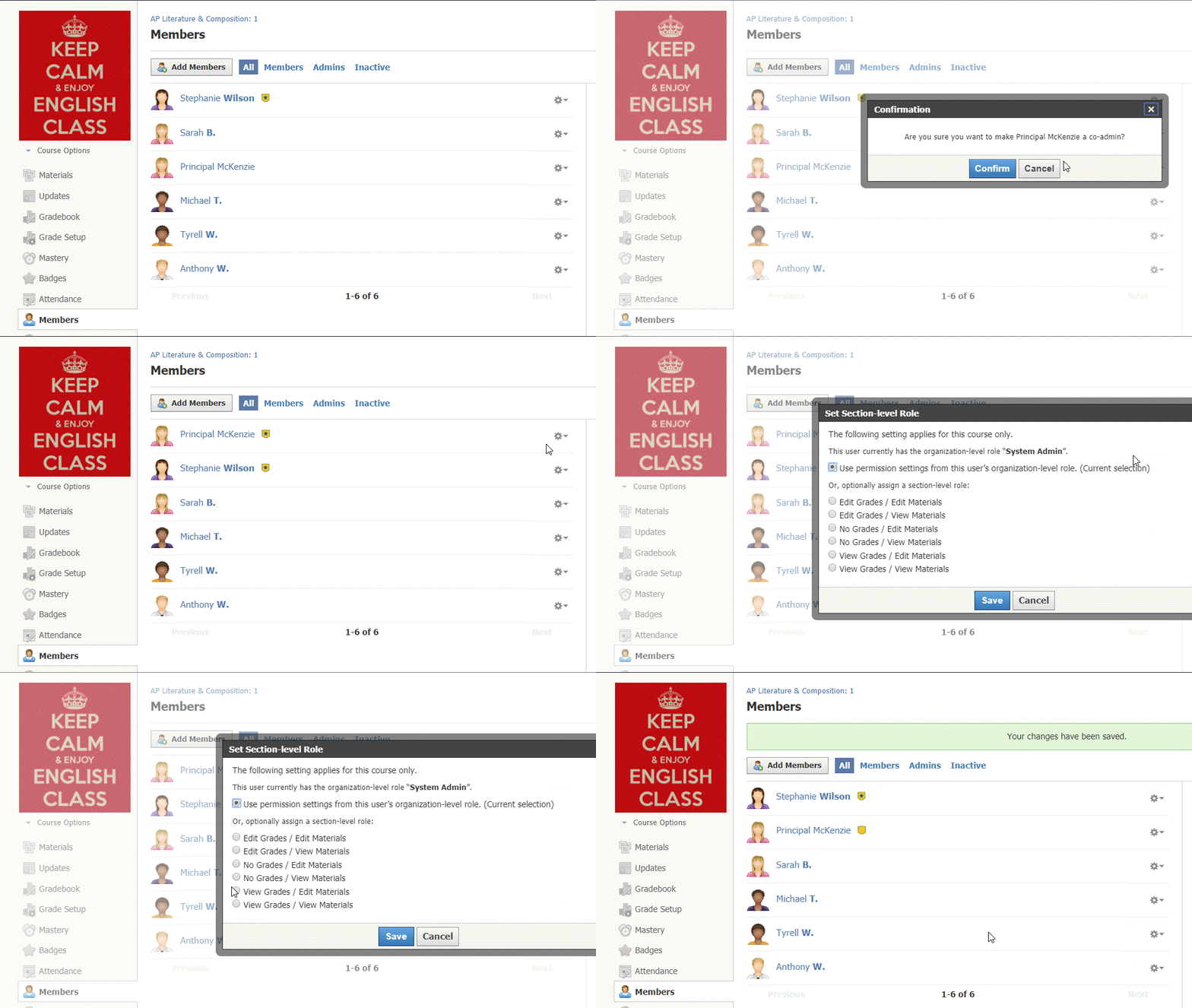
To assign an override role to a member in a section you administer:
-
Navigate to the Members page of the section.
-
Click the gear icon.
-
Select Make Admin from the drop-down menu.
-
At this point, the user is a course admin with organization-level permissions controlling what they can do in Schoology and this course section.
-
After the user is an admin, click the gear icon again.
-
You’ll see a new option, Set Section-level Role.
-
Click on this to see the section override role options.
-
A pop-up appears showing the options to either keep the user’s organization-level role or to assign a section-level role.
-
Click Save to apply any changes.
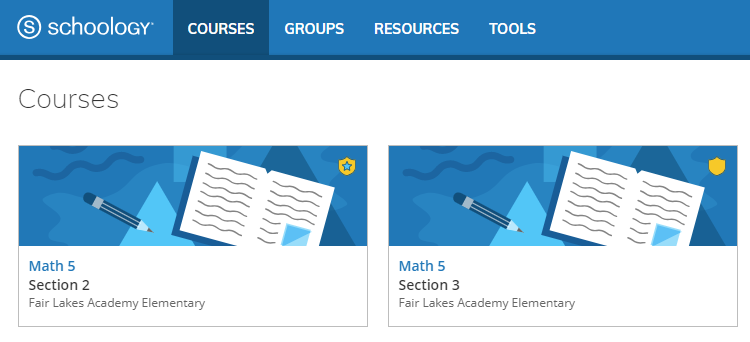
Icons
In Schoology, the shield icon is used to indicate admin status in a course or group. However, if your Enterprise organization has enabled the Section Override Roles feature, you may see different icons:
-

-

For example, in the screenshot, the user is a course admin with an organization-level role and permissions in Math 5: Section 2. In Math 5: Section 3, a blank shield icon indicates that a section override role is in place that overrides the user's organization-level role and permissions.