
Schoology’s App Center provides instructors with access to software developed by other companies from directly within Schoology.
Installing Apps
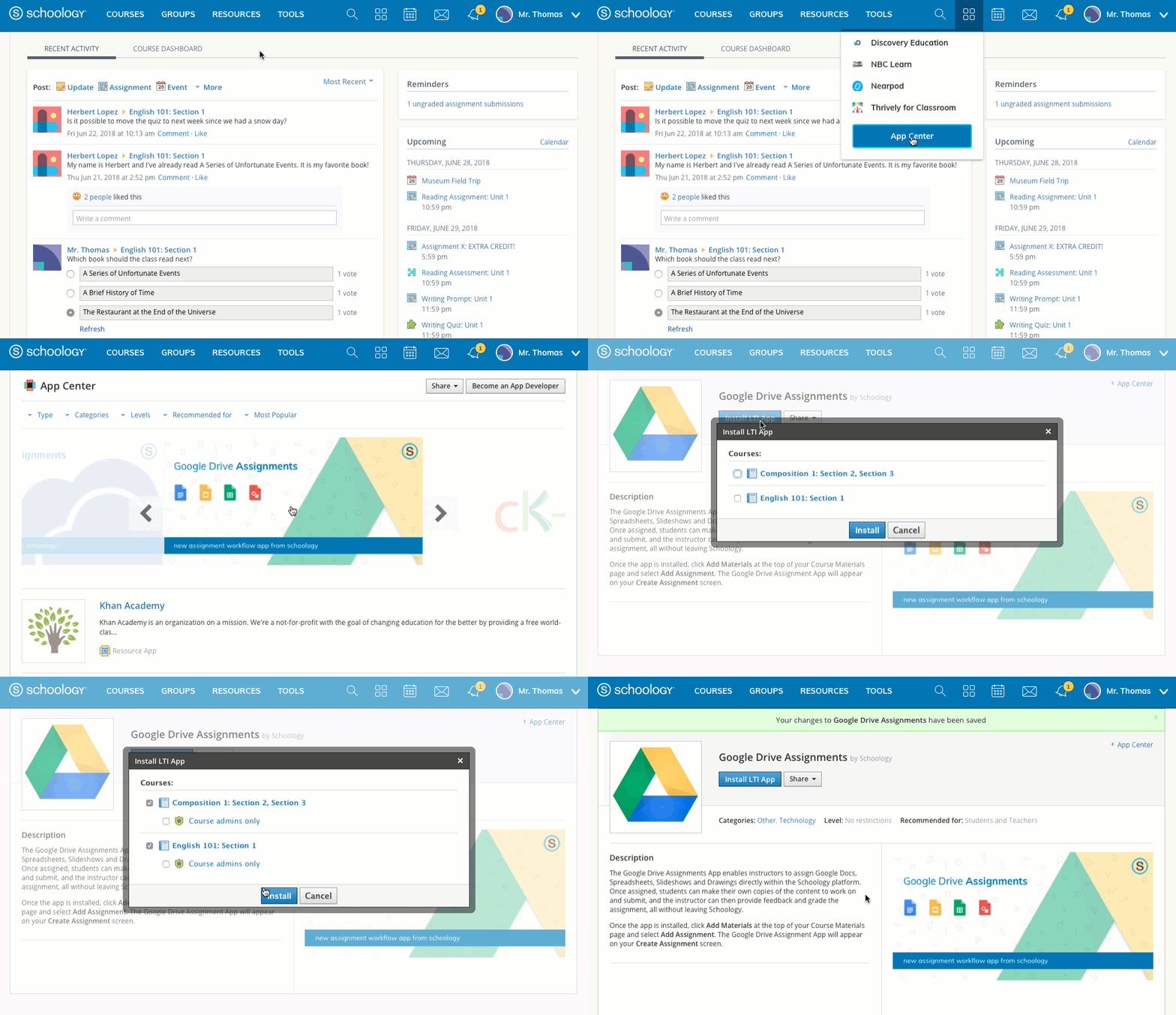
You can install apps directly into a course or group, or onto your Home Page. To install apps:
-
Click the App Center icon, then select App Center.
-
Select an app to install (click the app’s name to read an in-depth overview).
-
Click Install App.
-
Check the box of each course or group of the desired installation (some apps only provide the option of the Homepage).
-
After selecting a course, you have the option to make the app available only to Course Admin.
-
Click Install to complete.
Some apps require a subscription. They may require you to pay by use, by user, or by having a school-wide subscription. Contact your Support Contact with any questions.
Uninstalling Apps
There are two ways to uninstall apps:
Quick Uninstall
-
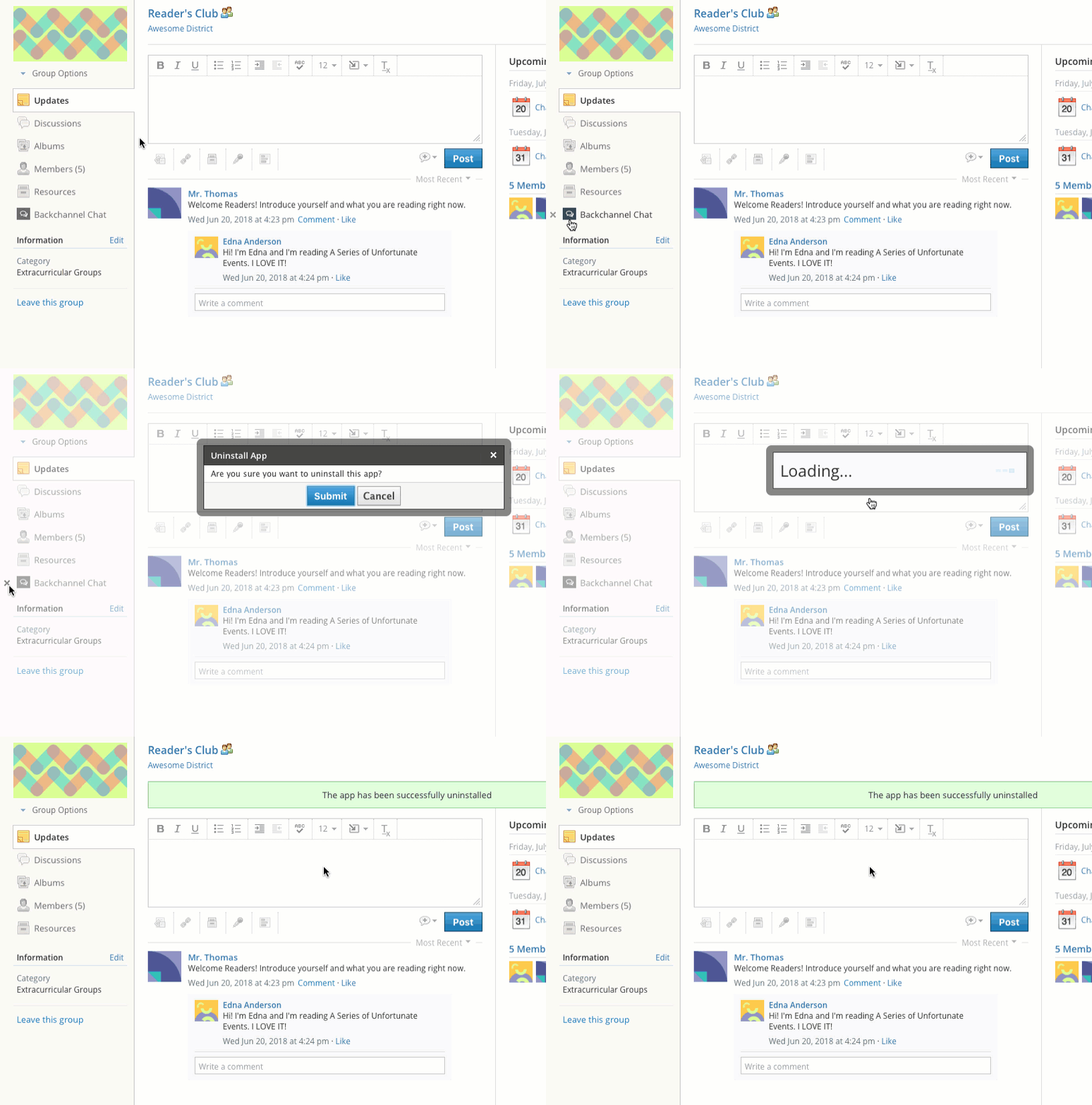
Hover over the app name in your course or group profile.
-
Click the X that displays next to the app.
Uninstall from App Center
-
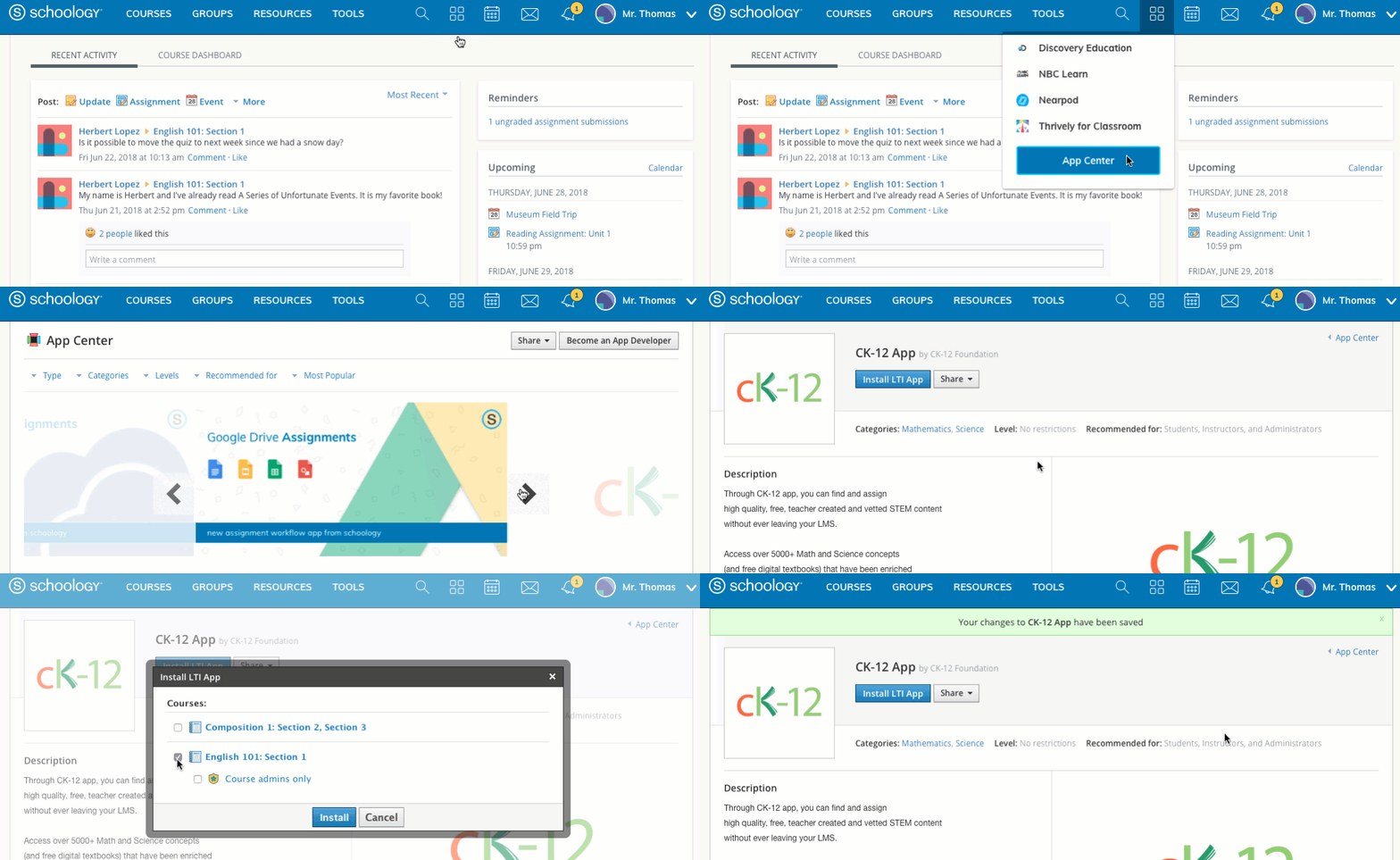
Click the App Center icon, then select App Center.
-
Locate the app in the app center and click the title.
-
Click the Install button.
-
Deselect all the courses and groups in which you've installed the app.
-
Click Install to save your changes.